Your Privacy, Your Rules: Stop Your Phone from Hearing You
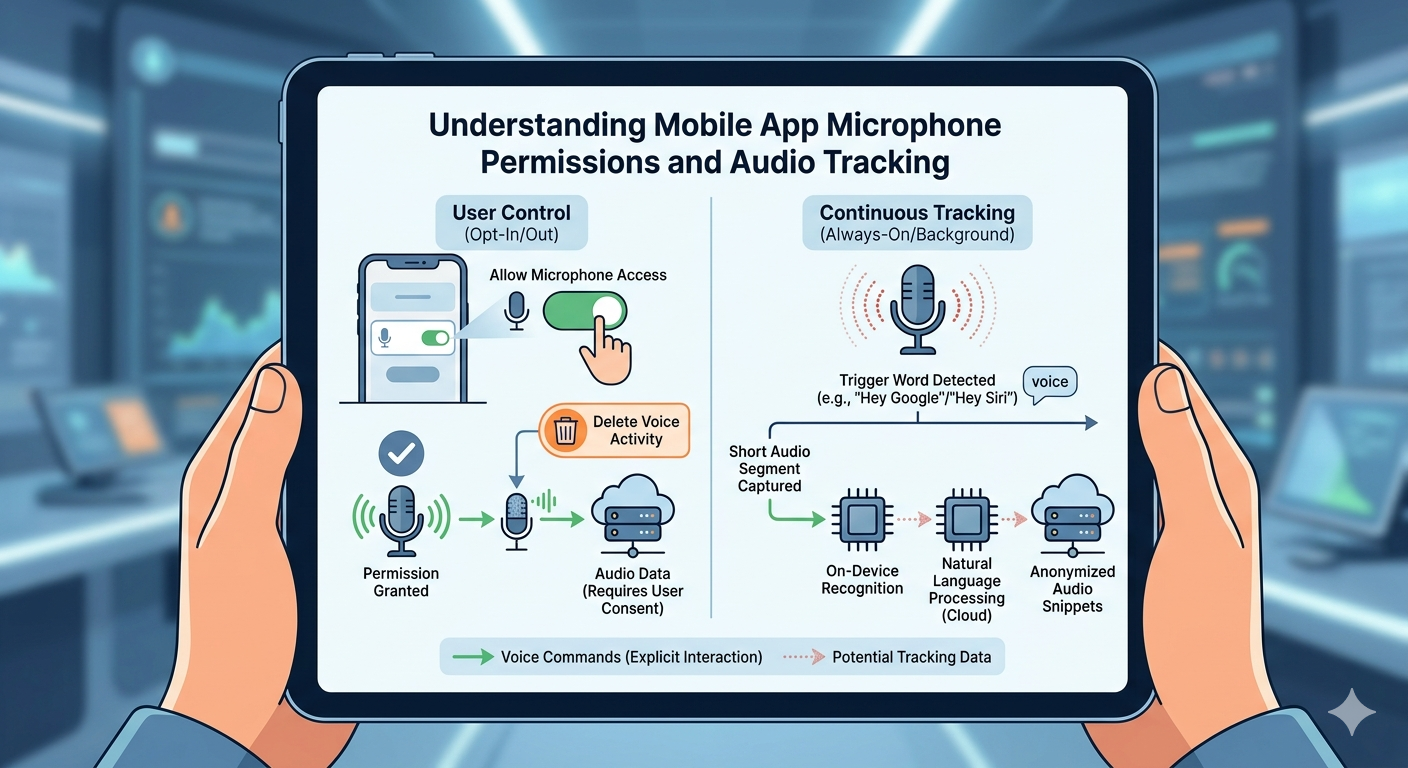
Privacy in the digital age often feels like a constant tug of war, but you hold more control than you think.
While the debate over ‘always-on’ microphones continues, you can proactively secure your digital footprint by adjusting a few core settings. This guide breaks down the essential steps to reclaim your privacy, helping you manage what your devices truly ‘hear’ and how they track your habits.
Here are some steps on how to limit your phone’s ability to “listen” or track your voice data:
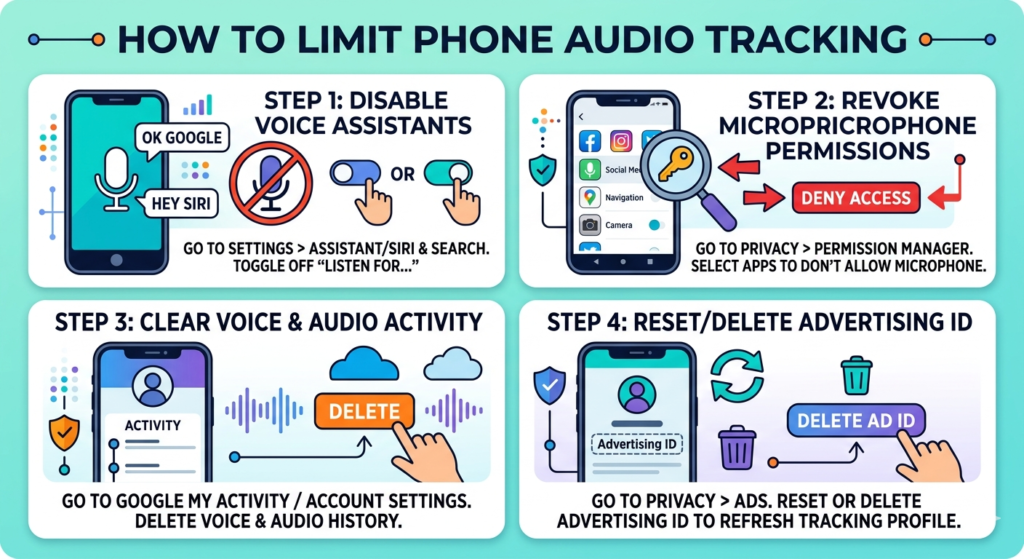
1. Disable Voice Assistants
Virtual assistants like Google Assistant or Siri require “always-on” microphones to detect trigger phrases (like “Hey Google” or “Hey Siri”). Disabling these features stops your phone from constantly listening for those commands.
- Android (Google Assistant): Go to Settings > Google > Settings for Google Apps > Search, Assistant & Voice > Voice and turn off “Hey Google”.
- iOS (Siri): Go to Settings > Siri & Search and toggle off “Listen for ‘Hey Siri'” and “Press Side Button for Siri.”
2. Revoke Microphone Permissions
You can manually prevent specific apps from accessing your microphone entirely.
- Android: Go to Settings > Privacy > Permission Manager > Microphone. You will see a list of apps allowed to use your microphone. Select apps you don’t want to have access and choose “Don’t allow”.
- iOS: Go to Settings > Privacy & Security > Microphone. Toggle off access for any apps you do not want using your microphone.
3. Clear Voice & Audio Activity
Even if you disable voice features, companies may store past audio recordings. You can delete this history.
- Google Account: Go to your Google My Activity page. Look for “Web & App Activity” and manage your settings to turn off “Include voice and audio activity.” You can also use the “Delete” option to remove past voice/audio history.
4. Reset or Delete Advertising ID
Advertisers often track your behavior across apps and websites to build a profile. Resetting or deleting your advertising ID creates a “clean slate”.
- Android: Go to Settings > Privacy > Ads. You can select “Reset advertising ID” or “Delete advertising ID” to limit how ad networks track your interests.
- iOS: Go to Settings > Privacy & Security > Tracking and ensure “Allow Apps to Request to Track” is turned off.
Note: Many tech companies state they do not use microphone audio to serve targeted ads, and that instances of ads appearing after a conversation are often due to sophisticated cross-platform data tracking (like location history, search history, and web activity) rather than active listening. Disabling the steps above, along with regularly clearing your browsing history and managing location permissions, provides a more comprehensive approach to privacy.
- Claude’s Invisible Watermark Changes How Marketers Create Content
- What Is Generative Engine Optimization (GEO)? A Plain-English Guide for Small Business Owners
- Everything You Need to Know About Meta One: Features, Pitfalls, and ROI
- How to Get Found by ChatGPT: A Small Business Owner’s Guide
- How to Automate Facebook Messenger: Hand Off Hot Leads & Sync Orders to Google Sheets