How to Automate Facebook Messenger: Hand Off Hot Leads & Sync Orders to Google Sheets
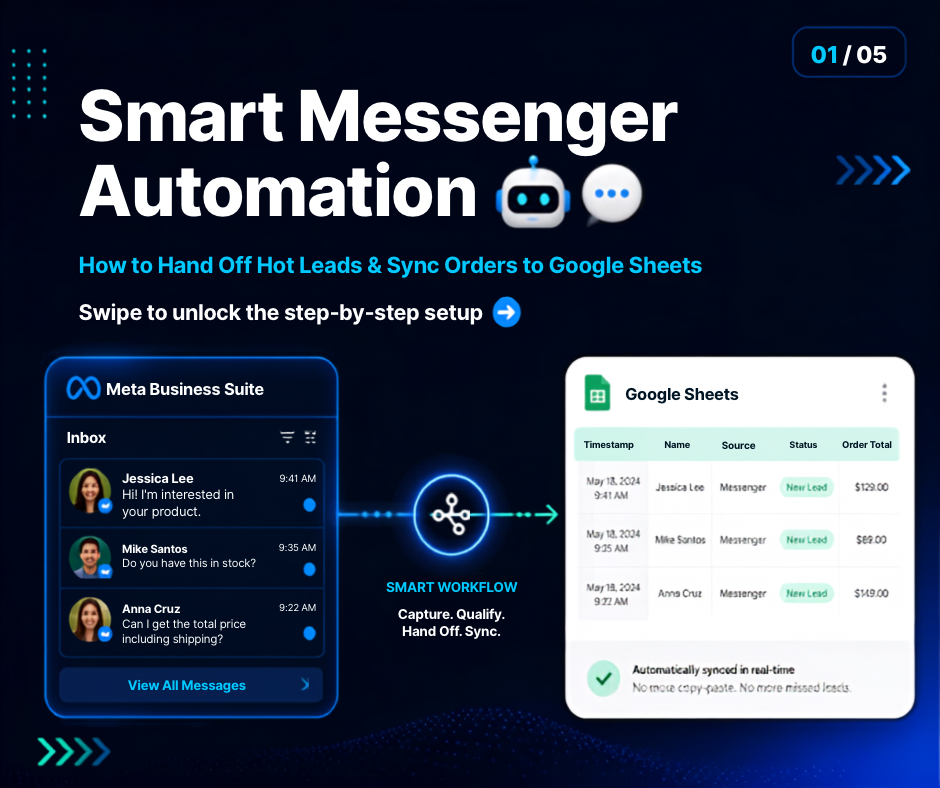
Handling customer inquiries on Facebook Messenger can quickly become overwhelming, especially during off-hours or when dealing with spotty internet connections. While automated responses keep your inbox active around the clock, fully automated bots often miss nuance—and worse, they can frustrate customers who are ready to buy.
The key to a successful chat strategy isn’t replacing humans entirely; it’s building a smart handoff system where AI handles routine questions, alerts your team when a human touch is needed, and logs critical order data automatically.
Here is your step-by-step guide to setting up human handoffs and syncing your Messenger conversations directly with Google Sheets.
Step 1: Set Up “Ready-to-Buy” Alerts in Meta Business Suite
If you are using Meta Business Suite’s native inbox tools, you can configure custom triggers that flag high-intent conversations and send instant push notifications to your mobile device.
How to set it up:
- Navigate to Automations: Open Meta Business Suite desktop, go to Inbox, and click on Automations in the top right corner.
- Create Custom Keywords: Choose Custom Keywords and enter high-intent trigger words commonly used by buyers (e.g.,
"order","buy","price","payment","human","agent"). - Automate Labels and Actions:
- Set an automated reply acknowledging their intent (“Thanks! A team member is reviewing your request now”).
- Configure the action to automatically apply a label like “Order Ready” or “Needs Agent” and mark the thread as Unassigned or Unread.
- Enable Mobile Push Notifications: Install the Meta Business Suite mobile app on your phone. Ensure notifications are turned on specifically for Unassigned or Important messages so you receive immediate alerts on your device when a lead turns warm.
Step 2: Configure Live Agent Handover (For Advanced AI Bots)
If you use third-party chatbot platforms (like ManyChat, Chatfuel, or Spur) connected to your Facebook page, rely on the Handover Protocol to prevent the bot from interrupting human sales agents.
Key configurations:
- Intent Recognition: Set rules so that when a user asks a complex question, fails to get a valid response twice, or taps an “Speak to Human” button, the AI triggers a handover event.
- Pause Automated Sequences: Ensure the bot automatically pauses its default reply sequences for 24 to 48 hours once a handoff is initiated.
- Instant Team Notifications: Route the alert directly to your team via email, SMS, or app notification so an agent can jump straight into the thread.
Step 3: Connect Meta Messenger to Google Sheets
Manual data entry from chat logs wastes time and introduces errors. Connecting Messenger directly to Google Sheets creates a live, centralized order log for your team.
Option A: Free Native Sync (For Lead Ads & Instant Forms)
If you capture customer details using Meta Lead Ads or native Instant Forms:
- Go to Meta Business Suite ➔ All Tools ➔ Instant Forms.
- Select the CRM Setup tab.
- Choose Google Sheets from the CRM dropdown menu and log in with your Google account.
- Paste the link to your spreadsheet, map the form fields (e.g., Name, Phone Number, Product), and send a test lead. Meta will log future form submissions to your sheet automatically.
Option B: Workflow Automation (For Direct In-Chat Orders)
If you capture orders through casual Messenger text exchanges:
- Use an Automation Bridge: Use integration tools like Zapier or Make.
- Set the Trigger: Select Meta Business Suite (or Facebook Messenger) as the trigger app, setting the event to “New Labeled Message” (e.g., when a chat receives the “Order Ready” tag).
- Set the Action: Select Google Sheets as the action app and choose “Create Spreadsheet Row”.
- Map Your Fields: Map the sender’s profile name, timestamp, and message history directly into your spreadsheet columns.
Summary Checklist
To keep your inbox organized without losing sales:
- [ ] Set up Custom Keywords in Meta Business Suite for buying signals.
- [ ] Enable Mobile Push Alerts for labeled/unassigned conversations.
- [ ] Configure your chatbot to pause automatically during human agent handoffs.
- [ ] Connect Google Sheets via CRM Setup or Zapier to automate order tracking.
By setting up these simple rules, your business stays responsive 24/7, captures hot leads instantly, and eliminates tedious administrative tasks.